
Hello everyone and Happy Easter!
For today I have prepared another tutorial on how to create your own brush.
This time it is about creating fractal Photoshop brushes.
I am sure many of you will like this kind of graphics:

But, if you are a beginner you probably assume that it’s extremely difficult, first, create your own custom brush and then create such graphic with it.
Well, it’s not! And I intend to show you how to do it in this tutorial.
So, for starters, to follow this tutorial you will need to have CorelDRAW! or Adobe Illustrator or some other software that does vector graphics. First, we will create a shape in CorelDRAW!, then export it to .EPS file, import to Photoshop and make a brush out of it. And that’s it!
So, let’s start CorelDRAW! and make a nice curved line using Bezier Tool:


Then, duplicate this line by dragging it and right-clicking the mouse on a new location:

Then select both line and go to Effects->Blend, Apply (you can leave all settings as they are)
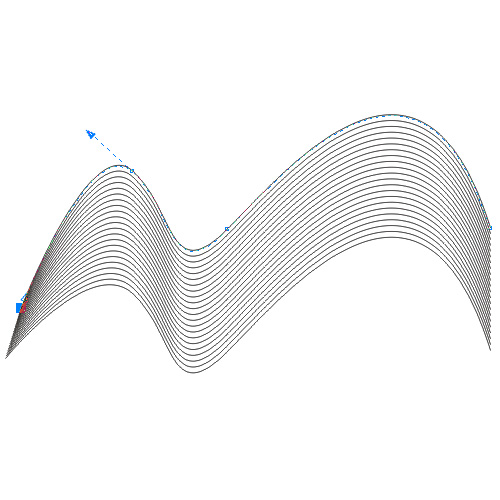
Modify and adjust the shape by selecting various curves from top or bottom line and moving it around until you are happy with the shape.

I must say, I was quite happy with this one 🙂
So, basically, our work here at CorelDRAW! is over. Now, when I think, maybe I should have used Illustrator, but let’s leave it for another occasion.
The last thing that is to be done here in CorelDRAW! is to export that shape in to .eps file. Go to File->Export-> On the pull down menu select “.eps”, give it some name, leave “Selected only” switched on and click Export:

Click ok and save it.
Now, let’s move onto Photoshop. Here I used Photoshop CS3 but you can use any version from Photoshop 7.0 onward.
In Photoshop go to File->New, Give it dimensions 2500px by 2500px (that is the largest brush size you can get) at 300px (it has to be big so that it can be used for large format printing as well, not just web).
Now, go to File -> Place, browse to our .eps file and place it into this new Photoshop file. Make sure to stretch it before hitting enter so that it is stretched from end to end like this:

Fine! We’re getting there, bare with me just a few more minutes 🙂
As you have probably noticed the .eps we placed onto our new Photoshop file is not really black as it should be. This can cause this brush to appear transparent when used in the future and therefore we need to make sure that our future brush is really black. Therefore, make sure you selected the layer with our shape and go to Layer -> New Adjustment Layer -> Curves and to the following:

Now, our future brush will be black!
So, after this we are ready to finish and create our first, custom made, Photoshop brush. Go to Edit -> Define Brush Preset and give it a name:

It will automatically appear as the last one on your present brushes list.
That’s it! Voila! Congratulations! You just made your own brush! Now, if you want to save it as an independent .abr file you will need to delete all brushes from your brushes list because otherwise your .abr (brush file) will contain all brushes from the list. So, after you deleted all other brushes except for the one you just created

Now, you just go to save brushes, give it a name and save it to:
C:Program FilesAdobeAdobe Photoshop CS3PresetsBrushes

And, now that’s really the end.
Now with a little playing with brush settings and Filter -> Render -> Lens Flare in no time you can create image like the one on the top of this post.
Look, in case you don’t want to go through all this and think that the trouble of creating some 29 fractal brushes, you can download it below.

(Photoshop CS3, CS4, CS5… and all newer versions compatible)
P.S.: Indeed, I realize the naming might not be entirely accurate; they’re not technically fractals. But, hey, I’ve decided to stick with the name for the time being, as a more fitting descriptor eludes me.
Meanwhile, why not explore the potential applications of these brushes? Dive into my latest concept: “Photoshop 7.0 Brushes, Scrapbooking, and How-To’s.” Here, I unveil the myriad ways you can leverage these brushes to elevate your projects.



This is such a useful tutorial. I was looking for some basic instructions that would walk me through making some Photoshop brushes. This is exactly what I was needing. Thanks so much for this info. I am glad I found this blog and am so excited about going through all your stuff here to see what else I can learn.
J
Thank you
These are not fractals…
They are nice, but they are not fractals.
Thanks everyone for your comments!
@Joe – … but I have to name them somehow 🙂
S
Awesome tutorial. Easy to follow and VERY easy to create. Thanks very much, I have been searching for something like this for some time now.
Andrew
Nice tut, Man. I followed the steps of your tut very well but I only got a single line when I placed the .eps file.What was wrong?
Hi designcharmer. It is really hard for me to figure out what went wrong in your case. Maybe you should play a bit with the export options during the process of exporting .eps from vector software and try different settings combination.
Thanks bsilvia for your anwer. I figured it out,…duh…. that’s the version of the psp that was playing negative role in this whole play.
I was using psp 7. The later version did it. Silvia, I’m a web designer in a company here in India.I love to learn new things and I’ve just started my life as a professional designer.Can I contact you now and then and learn something meaningful, which would help gain more knowledge and efficiency in my work?
Thanks!!!
Hi designcharmer,
Actually, I plan to start a small series of webinars in a time to come and you are very welcome to join. Prices will be really affordable. But, of course, you don’t have to wait for that. If you have any questions just ask, I will do my best to help you out.
Cheers,
Silvia
Thanks for this useful tutorial! Bravo!
Well, I’ve seen some stuff with fractals here and there … for some SFlike projects …
I don’t have CorelDRAW, so wish to see the tutorial in Illustrator soon. Thanks~
Wow awesome blog post! Fantastic tutorial dude. It?s ridiculous how many exceptional tutes you guys post. Really enjoy your site. A big heads up!