Gang, creating photo manipulation of wedding images is getting more and more popular. And for a good reason too. Wedding photos make great polygon for Photoshop exhibitions and I made one too :)
So, if you are interested to learn about wedding photo manipulation, here is a little tutorial!
Ingredients:
1. Here’s my choice for today’s Wedding Photo Manipulation.
- For this tutorial you will have to use your own image of the bride, but, just for learning purposes you could use any image
- Trees (download here)
- Sky with clouds (download here)
- Moon (wikipedia download from Luc Viatour)
- Mr. Alphons I, Mr. Alphons II

Once got our ingredients ready, together with a cup coffee, let’s dive into it.
1. Since I had the image in RAW format, I tweaked it during the import
- in Lightroom I used Color Creative CP2 preset.

If you don’t use Lightroom, here are the color preferences for RAW in Photoshop:

2. Now apply same color preferences for the two background images

3. Open the image with the trees. This will be the main background.

4. Place an image with the clouds above the background image and use the “Hard Light” layer option, with 57% Opacity.

5. And now, let’s clean it up a bit.
- Add layer mask on the image with the clouds.
- Draw a rectangle in the “mask area”.
- Fill the rectangle with a gradient: from black to none (empty). The grass is hidden and the clouds will fit well in the scene.

6. Let’s copy the main background image (with the trees) using “Multiply” layer option, Opacity is at 68%

7. Lighten the grass in the front of the scene, because we want to emphasize the front. Add a layer mask, and again: draw a rectangle and fill it with a gradient: from black to none (empty)

8. Open the image with the bride and using the Quick Mask option “color” erase the background. Simply turn off Quick Mask when you are done and invert the selection area then erase it.

9. Now add a bride in the scene, just drag and drop. Place it under the tree and using Burn Tool darken the areas that will be in the shadow.

10. Using the Burn Tool darken the grass – create the shadow behind the bride, drawing shadow on the main background image.

11. Now, let’s add the moon. Open the moon file and using Elliptical Marquee Tool and “Shift” key draw a circled selection. Invert the selection and cut out the moon.

12. Color the moon with blue using Hue/Saturation.
First, set the foreground color.
Open Image – Adjustment – Hue/Saturation and check the Colorize option. Click OK, it’s done. The moon is blue.

13. Now create a layer set and change the set option into “Color Dodge”. Drag and drop the moon image into that layer set.

14. Now, copy the background with the trees as many times as you want to achieve the night feeling in the scene. I copied it four times. Merge all 5 layers (background images with the trees).

15. Now use the Dodge Tool, and lighten the image below the moon creating the moonlight effect.
Set up the Dodge Tool as shown.

16. Create a new layer in the layer set with “Color Dodge” style. Add some Hearts brushes (various sizes) and apply Filter – Blur – Gaussian Blur. Create another layer and repeat the same, but use less Gaussian Blur in order to create 3D effect. (How to instal and use Hearts Photoshop brushes – design an unique wedding invitation – video tutorial MP4)

17. Also use simple brush, with 0% Hardness and approx 30 px size.

18. I added a sleeping cat too. The process is the same as for the bride.

19. Another cat (same my Mr. Alphons) is added behind the tree trunk. Of, course, he is not behind the tree but dark bark was good to hide his body…

And here is out final result! Voila!
My cousin loved it, I hope you like it too!

In case you liked the Hearts Photoshop brushes touch, these are available in my Photoshop brushes store with commercial license so you can create commercial projects with them.
That’s all folks! Talk soon!
Silvia
P.S.
Our 250 color postcards give-away contest is still on [ends on 26 January 2012]! So, hurry up and enroll, nothing to do really just leave a comment… read more –>
Popularity: 1% [?]

I noticed, ever since I started my Photoshop brushes business that many of my buyers are using Photoshop brushes to create their own custom stamps. And this is, mainly, for two different purposes (which sometimes overlap).
1. They use these stamps in their own DIY projects like scrapbooking or similar
2. And more often then not, they use Photoshop brushes to create designs for stamps which are then being sold to stamp buyers.
And this is all well. The whole idea behind my Photoshop brushes is to help you guys, not just create stuff for your own needs, but also to help you create new stuff out of it (like rubber stamps) and make some money along the way.
There are quite a few services out there offering custom stamps. Most of them offer quick and easy on-line stamp creation. Of course, although most of you will be interested in creation of custom stamps for your scrapbooking and DiY craft needs, still, you might want to have your own signature stamps as well. Or you might want to have a stamp with your logo on it.
So, in this little exercise, I wanted to see for myself how fast and how easy it is to create your own logo stamp with a little help from Photoshop brushes.
And, believe me, it was faster then I though. Before starting the process there are few rules to know.
- First, the image you’d like to have on your stamp must be in full black color. Your stamp can, later on, be in red or other color, but the image you are uploading must be black.
- Resolution of the image must be 300dpi. My brushes are in high resolution so this is not a problem.
- File formats: cdr, ai, eps, tif, psd, jpg, gif and pdf. Of course, in this case .jpg is probably our choice
So, the procedure is quite simple, create a new file in Photoshop, make it a desired size, but the resolution must be 300dpi, add a Photoshop brush which you’d like to turn into stamp and save the file in .jpg format. (Notice: You might want to crop image so that the blank space between the brush and the edge of the image is maximally reduced.)
Now, step two, on the stampxpress.com, you will go to “Design Your Own Stamp” option and upload the file. You may choose to have up to 20 lines in your stamp but in most of the cases, 3 should be enough. You also get to choose the font type, size, attribute (bold, italic, underline) and the alignment.
And this is how I created a stamp for Graphics-Illustrations.Com.
Finally, many of you will go and look for discount stamps. For these, as well stampxpress.com is probably the right address.
Popularity: 1% [?]
Gang, it’s here, finally, 2012 is here.
I hope you had fun on the New Years Eve. For me it was not bad at all. Actually, I can’t remember when was the last time I danced so much :)
Well, now we’re back to the track ;) and it’s time, again, to make some useful stuff for you guys. And I hope you will like this one because, today, I proudly bring you
300dpi, print ready, Legal/A3 size, Calender 2012 – free download
I prepared two versions: horizontal and vertical so it’s up to you to decide which one will fit to your “creative wall” better.
Horizontal Printable 2012 Calendar – Legal/A3 size

Free Printable 2012 Calendar Download (Horizontal)
Vertical Printable 2012 Calendar – Legal/A3 size

Free Printable 2012 Calendar Download (Vertical)
In case you were wondering, I managed to create this Calender rather quickly (you could create a Calender like this in minutes actually). How? Why?
Well, easy. You probably guessed. I used the following Photoshop brushes to make it:
Swirled Trees Photoshop brushes set
- 20+20 Photoshop brushes
- Bonus trees brushes set (46+46) – trunk is separated from tree top for easier coloring
- Compatible with Photoshop 7.0 up to CS5- Compatible with Photoshop Elements 3.0 and newer versions
- Also compatible with PC/Mac
- COMMERCIAL LICENSE
Video Tutorial on how to use Swirled Trees Brushes Set: How to Use Swirled Trees Brushes Set
Birds Photoshop brushes set
- This set consists of 45 brushes up to 2498px AND 45 brushes up to 600px
- Compatible with Photoshop 7.0 up to CS5- Compatible with Photoshop Elements 3.0 and newer versions
- Also compatible with PC/Mac
- COMMERCIAL LICENSE
Birds brushes [These were also used in logo: Chris Turnbull Photography
Thanks Chris! :)]
2012 Calendar Photoshop brushes set
12 brushes in three designs and three sizes:
* up to 636 pixels @300dpi
* up to 1342 pixels @300dpi
* up to 2470 pixels @300dpi
- 36 transparent PNG files (approx. size 10 inches @300 dpi)
- Compatible with Photoshop 7.0 up to CS5- Compatible with Photoshop Elements 3.0 and newer versions
- Also compatible with PC/Mac
- COMMERCIAL LICENSE
All three sets are a part of the 800+ Photoshop brushes MEGA SET – click here to get the whole pack –>>
Popularity: 1% [?]
This is third post of my Do It Yourself Christmas saga: first was Do It Yourself Christmas Wreath, then second Do It Yourself Christmas Photo Card and this, third, one is – Do It Yourself Christmas Labels (Photoshop brushes set).
So, dear visitors, friends, ladies and gentleman!
Graphic designers, web designers, scrapbookers, artists, photographers, videographers, Photoshop professionals and enthusiasts!
Today, I proudly present you nice and FREE for “commercial use” tool for your:
* graphic design projects,
* Christmas party invitations,
* Christmas gift labels,
* web design projects,
* photo books,
* rubber stamps,
* wallpapers,
* paper designs,
…whatever YOUR idea is – this one will make it happen:
Christmas Labels Photoshop brushes set
There are 4 label designs, but every label is made of 4 different shapes (for easier coloring) and they all come in three sizes.
[ PREVIEW CHRISTMAS LABELS PHOTOSHOP BRUSHES ]

But! This is not all! I, also, prepared a short video tutorial too, on how to use Christmas Labels Photoshop brushes. This tutorial will help you speed up the process of creation of Christmas graphics!
DOWNLOAD Christmas Labels Photoshop brushes /0,95Mb zipped/
And here’s a little example of a graphic made with Christmas Labels Photoshop brushes

Also, if you are a GBG Gold or Platinum member or if you decide that you want to become one, I prepared another free download for you!
Simple Christmas Trees Photoshop brushes [for Platinum GBG members only]:

Simple Christmas Trees Photoshop brushes set, video presentation
And a little something for Gold and Platinum GBG members:
Cute Labels Photoshop brushes

Cute Labels Photoshop brushes set, video presentation
OK. Gang, I hope you like new free downloads, videos and stuff and I just can’t help it, here is a little advice for all of you who won’t settle for less than 800+ Photoshop brushes:
Love you all!
xoxoxo
Popularity: 1% [?]
Do It Yourself Christmas Photo Card and this one is very easy – just “slide” your photo into the template.
Gang, Christmas is knocking on the door. For the most of us, this is the time we’ve been waiting for since January 2011. And, finally, it’s December which marks the beginning of - Good Times !
So, what do we do for Christmas? Loads of stuff, I know, but, one of the inevitable things we do is sending Christmas Cards!
And, for this purpose, I prepared one totally cool template (at least I’d like to believe it’s totally cool :)) which you can download, ”slide” your photo in and – voila! Christmas Photo Card is finished!
Today’s free download includes two transparent PNG files and one multilayered PSD file. (All in one zip file). PSD files contains images and wordings too!
[ Download Free Christmas cards here ]
To make this template I used:
Fonts:
Ma Sexy from dafont.com
Windsong from dafont.com
Photoshop brushes:
Christmas II Photoshop Brushes (20+20+20) + 20 PNGs

Christmas Photo Card with one photo – add some cool background or macro shot you have.

Christmas Photo Card with three photos – it can be your family members for instance.
Don’t forget you can edit the text too :) I mean, if you’re good with Photoshop you can edit everything, twist and tune it until you love it! ;)
OK, Gang, this was rather short … and sweet I hope. Don’t forget to check out the awesome Cyber Week sale I have here and keep that lovin’ feeling :)
xoxo
Silvia
Popularity: 2% [?]
Christmas time is coming and I know many of you, just like me, enjoy creating your own decorations at home, in the company of your friends and family. It’s more fun and these decorations have much bigger value than the ones bought in the mall.
So, today, I came up with this idea of creating a wreath. And, as a basis for it, I used styrofoam. I made it with the stuff I had at home and I hope you will like it enough to try and do something like this yourself, following this DIY tutorial.
1. Printing images
Print some of your photos, use images of your friends, family, or pets (as I did in this occasion) … in 2×2 inches size. Of course, I could not resist but to decorate my images with Photoshop brushes: Christmas II Photoshop Brushes (20+20+20) + 20 PNGs, and I used them as photo masks (there are few brushes in a set which can be used as photo masks too. Also I used one of the free Photoshop brushes from GreenBulbGang.Com – Grunge Stars)

And, well, I printed them out …

2. Preparation
Prepare the following: styrofoam, fabric, colorful fabric ribbons, wire, pine cones, gold color, glue gun.

3. Cutting the styrofoam (Part I)
Before cutting a circle, of course, we need to mark the styrofoam, I draw two circles using a pen, pick and a rope. No, that’s not my hand :) My hubby helped me.

4. Cutting the styrofoam (Part II)
That’s it. Now I had to cut it out. First I cut the smaller one. I know there is a styrofoam cutter, but I do not have it. So I used a simple knife. It was really messy. But I manage it.

5. Voila, that was the hardest part!
The hardest part is done! You can always buy something like this in a store. But I didn’t. Because this is DIY Christmas wreath :)

6. Dressing up
I dressed-up this wreath-to-be in a dark green cloth decorated with gold stars, moons and other drawings… I glued the cloth to the styrofoam with a glue gun. Yes, that’s me gluing the cloth :)

7. Dressing-up – completed
And, here’s the result:

8. Wiring and decorating
Now, I cut some wire and simply clasped it around the wreath-to-be. The upper part was twisted in a spiral so that we can insert the images. I didn’t have thicker wire. If I had a thicker wire I’d just pin it in the styrofoam. Also, I prepared pine cones and sprayed them with gold color.

9. Pine cones
Finally I glued the pine cones with a glue gun.

10. Inserting the photos
OK. That’s it. Now is time for printed images! Cut them, and glue them over the spiral wire. If you just attach them into spiral, they will fall off.

11. The final touch
I felt this wreath was missing something, so I added red and gold ribbons all around it.

12. OK. One more final touch
I added some bows around wires too!


13. And … voila!
Finito! bsilvia Christmas Wreath (2011/2012 edition) is ready! :))

I hope you will like it and maybe even try to do it yourself. Should you have any questions, let me know I will be more than happy to help.
Here is what Mr. SpaceCat thought of it:

Mr. Alphons was not impressed either

But, the old queen, Poofah, she wanted to eat the pine cones ?!?!?

Love you all, have fun and may the peace be with you.
Silvia
Commercial:
CYBER WEEK SALE! GET 1600+ High-Quality Photoshop brushes for peanuts. This week only.
Popularity: 1% [?]
Gang, what can I say?
HAPPY THANKSGIVING EVERYONE!!!

I made this little graphic with a little help from free Photoshop brushes and Photoshop textures from GreenBulbGang.Com :)
You might like it, or you may not. If you like it, you can download it and re-use it for any other possible purpose … or not.
It’s clearly, up to you.
[Download Thanksgiving graphic - layered PSD File] – zipped 27.2Mb, 8×8 inches @300 dpi – print ready!
Love you all!
I hope you are spending this day with your family, friends, people you care about, people you love.
Silvia
Popularity: 2% [?]
This post is going to be somehow different. It will be about our heart (not just heart graphic), positive energy vibration and quantum physics. It is, basically, something I wrote into my diary, but then I decided to share it with you:
…
Now it’s clear. It is the emotional vibration that makes things happen. It’s not the thoughts, although the thoughts can help to generate that emotional vibration.
Tesla also said that. Energy supersedes matter.
However, the real issue is – how to get into that emotional state of positive energy, love and happiness when the goin’ gets tough?
For instance, how cool would it be if we had a device which we could just plug in to get rid of of any negative emotions and get into the positive mode, so that we start emanating good vibrations and, as a consequence, start creating positive events in our 3D world as well.
A device. Fast solution. Many reach for narcotics to get closer to that emotional state, but narcotics are not doing it. It’s obvious. They are not working.
So, the device which will initiate positive vibrations from our body/mind/soul/consciousness/subconsciousness and put us in a mood of bliss.
Now, I am not talking about the device which will take energy from somewhere else and put it into us. We have the “ingredients for happiness” within ourselves already. I believe that it’s, probably, layers of energetic “dirt” what prevents this original, positive energy from coming out of us in difficult times.
So, as I said, the “ingredients” are already here, within us. It’s only a matter of putting them to work. This is what this device should do. It should pick up what’s already sitting there and put it to work.
OK. So, the idea for the device is here. I know what should it do and someone should jump in and actually make it :)
In the meantime, I will do what I do, here is another print ready card which you can use for multiple purposes, or you could just download it and explore the layers to see how it’s done.
[Download Heart Design Layered PSD File] – zipped 12.3Mb, 8×8 inches @300 dpi – print ready!
Love you all, guys. And until someone comes up with a machine like that I guess will just have to rely on our own capacity to keep our spirits up no matter what.
xoxoxo
Silvia
Popularity: 2% [?]
I used today’s free graphic to frame a photo of Mr. Alphons. (image above)
Today, I prepared a little something for scrapbookers. A layered Photoshop (PSD) file which is a digital scrapbooking “Quick Page”. It is a Photo mask at the same time. It is all that and more :)
So, if there is any human being still doing something else apart from writing posts and comments on Facebook, I count on you. I hope you will be reading this, maybe liking this download and maybe you will use it to create a nice graphic using some of your photos with it.
Regarding Facebook. I admit. I spend too much time on Facebook. I sit there every day for hours and I am not sure if I like that. So, I decided to proclaim one day of the week a No-Facebook day! I mean Facebook is nice, but we need to be careful before becoming slaves to the habit (unless it is a habit of creating stuff :))
Ladies and gentleman, let me present you
Digital Scrapbooking QuickPage / Photo Background / Photo Mask – layered Photoshop PSD file
(zipped, 6.5Mb, 8×8 inches @300dpi – print ready)
This image was created with free Photoshop brushes: Dotted Arrows available for all GBG Members!

Now, this is one short post.
I hope you are enjoying your Thursday, just bear with it cause Friday is already knocking on the door!
Enjoy!
xoxox
Silvia
Popularity: 2% [?]
I know what you are thinking. “Why, on earth would I want to send a Christmas card in the middle of November?”
Of course, you would not. We still have a month and a half before Christmas.
But. Just like me, you will want to start thinking about preparing your Christmas design projects. Soon, just about anything you create will be decorated with Christmas decorations, isn’t it?
So, we better be ready and equipped with the right tools before the rush begins :)
Ladies and gentleman, I present you
Red and White Christmas Card, free PSD file
It is a layered PSD file so you can play with it, rotate design elements and make the card portrait or landscape, as you wish.
Download Christmas Card Template / New Year Greeting Card Template (or Christmas ecard, New Year card) – layered Photoshop PSD file
(zipped, 3.2Mb, 6×8 inches @300dpi – print ready)
Ingredients:
Font:
Loopi from dafont.com
Photoshop brushes:
Winter in Swirls Photoshop Brushes Set (33+33+33)
- 33+33+33 Photoshop brushes
- Compatible with Photoshop 7.0 up to CS5 and newer versions
- Compatible with Photoshop Elements 3.0 and newer versions
- Also compatible with PC/Mac
- COMMERCIAL LICENSE
Here, on our on-line graphical playground, I prepared some Christmas backgrounds and Photoshop brushes (digital stamps) for you to play with.
Test the brushes – Create your own Christmas e-Cards here
Here is how to use our simple graphics creator:
- Select the background
- Add text (select font and font color)
- Load the desired Photoshop brushes set into the brush picker
- Select the brush, color it, adjust transparency
- Rotate and re-size the brush before placing it on canvas
Use the keyboard shortcuts :
Ctrl (Cmd on Mac) and arrow keys (left, right, up and down) to rotate and re-size the brushes.
Please be patient after clicking on “Submit” button. It might take while before the email is sent. Thank you!
I hope you enjoyed my little Graphics Creator and the brushes included. One way or another, I’d love to hear what you thought of it.
Love you all!
xoxoxo
Silvia
Popularity: 7% [?]
“Love card????” I hear you say “Helooo?!!?! It’s, like, three months before Valentine’s day! Why can’t you just make something for Christmas like everybody else?“
I know. I can’t help it. Love is in the air and muses just don’t care about timing. So, I sat by my trusted PC (no I still haven’t saved enough for Mac, thanks for asking :)) and this card just came out. Out of the blue. OK. The sky was grey but still.
Ladies and gentleman, let me present you today’s free download:
Love card (or love ecard) – layered Photoshop PSD file
(zipped, 10.3Mb, 6×8 inches @300dpi – print ready)
So, if you are in love, or if you feel like you could fall in love any time now, or if you know someone who is in love, or … ok, enough now. What I wanted to say is, download this file, edit the text if you want (it’s in separate layer), play with it or use it as it is – send a love card.
Or just keep it, because, even if you are not in love right now, you just never know when will that love arrow hit you :) Love might just be right behind the corner.
Also, as always, here is what is this card made of (apart from love):
Font:
Euphemia – ffonts.net
Photoshop brushes:
Circled hearts, Photoshop brushes set (40+40)
Circled hearts, Photoshop brushes, total of 80 brushes: 40 brushes up to 1653px and 40 brushes up to 293px
- Compatible with Photoshop 7.0 up to CS5 and newer versions
- Compatible with Photoshop Elements 3.0 and newer versions
- Also compatible with PC/Mac
- COMMERCIAL LICENSE
OK. So, warm up you loving hearts, I need you to be ready when Christmas comes to town!
Yours,
Silvia
Popularity: 2% [?]
Paisley design originates from India, Pakistan and Persia but the western name “paisley” derives from the town of Paisley in Scotland. Well, I didn’t know that. I mean, I thought it was originally from Persia, but that was all I knew.
Anyways, paisleys are totally cool decoration and not just for textile design, but for graphic design as well.
In this example, in created a wedding invitation and decorated it with paisleys. I wanted to achieve clean and elegant look using – paisley shapes.

This wedding invitation template can be used as birthday card too. Just change the wordings in white square.

Wedding Invitation – free layered Photoshop PSD file can be downloaded here
(zipped, 3Mb, 8×8 inches @300dpi – print ready)
Font used:
Swis721 Lt BT
Photoshop brushes used:
Paisley Designs (75+25)
Place smaller ones inside bigger ones (up to three) and create brand new, unique and totally yours new paisley shapes!
Paisley Designs with a total of 25 Paisley Designs Brushes divided in three sections – 75 brushes! and 25 complete paisley designs = 100 brushes.
- Compatible with Photoshop 7.0 up to CS5 and newer versions
- Compatible with Photoshop Elements 3.0 and newer versions
- Also compatible with PC/Mac
- COMMERCIAL LICENSE
[ Preview ] [ BUY ]
Paisley Designs Photoshop Brushes are part of 800+ Photoshop Brushes MEGA SET 1
I hope you are enjoying your Sunday.
Have fun creating!
Silvia
Popularity: 2% [?]
Sometimes it is hard to find the right way to say “Thank you!” And all of us have at least someone in our lives who deserves to be thanked. And I’m not talking about just a casual “Thanks” when someone holds the door for us. I am not, necessarily, talking about our parents, family of friends. It can be someone we barely know, but still they did a great deal for us and deserve our gratitude.
Personally, I believe that a gift accompanied with a nice “Thank you” card is one of the nicest ways to express gratitude.
So, today’s graphic is a Thank you card. You can modify the text and make it a wedding thank you card, birthday thank you card, sympathy thank you card… You could add your photo and make it a photo thank you card. This could be a baby shower thank you card too, or you could just keep it simple – a thank you card for special purposes.
Download free psd file here (7,5 Mb, zipped PSD, 8×8 inches @300 dpi – print ready)
It is a layered .psd file so you can play with it tune it until it fits your needs.
Font used in this thank you card graphic is: Windsong, from dafont.com
This graphic was decorated with:
Hearts Photoshop Brushes Set (32)
Hearts (grungy) Photoshop brushes set of 32 brushes: 981-1801 pixels
- Compatible with Photoshop 7.0 up to CS5 and newer versions
- Compatible with Photoshop Elements 3.0 and newer versions
- Also compatible with PC/Mac
- COMMERCIAL LICENSE
Photoshop Brushes: Birds (45+45)
This set consists of 45 brush up to 2498px AND 45 brushes up to 600px
- Compatible with Photoshop 7.0 up to CS5 and newer versions
- Compatible with Photoshop Elements 3.0 and newer versions
- Also compatible with PC/Mac
- COMMERCIAL LICENSE
OK. That’s it for today. I hope you like the download.
Enjoy your Saturday and never forget to have fun creating!
Love, Silvia
Popularity: 2% [?]
Free PSD file: Best Birthday Wishes
Gang, Friday is here, chances are, some of you are invited to a Birthday party today, or maybe tommorrow. Fridays and Saturdays have always been reserved for party in’nit?
Well, no matter when does the party start it is always nice to accompany the present with a nice Birtday card.
So, for today I prepared
Printable Birthday Card
If you like it, but also, if you don’t like it but believe that something could be done out of it download free PSD file (zipped, 10Mb)
– it’s 8×8 inches, high resolution graphic
– 300dpi
– print ready!
You can modify it, it’s in layers, so you can easily change colors, add/remove stuff and play with it. You can customize it any way you like, add your friends name or different text, all in all – tweak it until it’s perfect :)
The decorations on this card are:
1. Borders Photoshop Brushes set (25)
Set contains 50 PS brushes – 25 original in 2500 pixels brush size and 25 in small sizes (900 pixels)
- Compatible with Photoshop 7.0 up to CS5- Compatible with Photoshop Elements 3.0 and newer versions
- Also compatible with PC/Mac
- COMMERCIAL LICENSE INCLUDED
2. Outlined Swirls Photoshop Brushes Set (23)
Set contains 23 PS brushes – from 397 pixels up to 2113 pixels
- Compatible with Photoshop 7.0 up to CS5- Compatible with Photoshop Elements 3.0 and newer versions
- Also compatible with PC/Mac
- COMMERCIAL LICENSE INCLUDED
3. Circled hearts, Photoshop brushes set (40+40)
Total of 80 brushes: 40 brushes up to 1653px and 40 brushes upt to 293px
- Compatible with Photoshop 7.0 up to CS5- Compatible with Photoshop Elements 3.0 and newer versions
- Also compatible with PC/Mac
- COMMERCIAL LICENSE INCLUDED
All brushes used here comes in 800+ Photoshop Brushes MEGA SET 1 – you can get 24 Photoshop sets with 50%. Plus 4 great bonuses :)
Font used: Orator Std, Adobe font.
OK, enough for Friday! The weekend has officially started!
If you are going for a party – enjoy it, go crazy!
If you are staying at home or whatever you do – enjoy it and have fun!
Until tomorrow, hugs and kisses,
Silvia
Popularity: 2% [?]
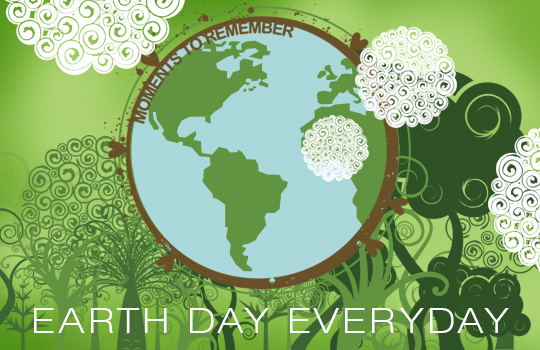
Free PSD file – Trees & Earth
I’m sure you love trees.
I love them too. This year I planted lot’s of trees in my backyard: lime-tree, bearberry (around 12), hornbeam (many), black pine (two), Mediterranean oak tree (many of them), bay laurel tree (many of them), gorse tree (three of them). And I’m not talking about FarmVille (from Facebook), no! I’m talking about my real backyard :)
So, I figured, I should make a graphic and dedicate it to trees. And, before you know it … voila!
Earth image courtesy of NASA and the NSSDC
So, if you like it, feel free to download free PSD file (zipped, 31Mb) – it’s 8×8 inches, high resolution graphic – 300dpi – print ready! You can make a nice poster out of it, a decoration for your office or kitchen or … you name it :)
If you’d like to know how was it done, here are some hints :) I used:
Swirled Trees Photoshop brushes set (20+20) + Bonus trees brushes set (46+46)
- 20+20 Photoshop brushes (two sizes)
- Bonus trees brushes set (46+46) – trunk is separated from tree top for easier coloring
- Compatible with Photoshop 7.0 up to CS5- Compatible with Photoshop Elements 3.0 and newer versions
- Also compatible with PC/Mac
- COMMERCIAL LICENSE INCLUDED
Video Tutorial: Using Swirled Trees Brushes Set
(There are some cool tricks in this video, so don’t just overlook it.)
Swirled Trees PS brushes set is a part of 800+ Photoshop Brushes MEGA SET 2 (collection of 24 sets, containing more than 800 Photoshop brushes, now 50% OFF!)
[ Preview ] :: [ Preview Bonus set ] :: [ BUY ]
You can download Earth public domain images on Internet, just Google for them. I got mine here ->
Also, I used Gill Sans MT typo – you can download it from FontZone.
And, another thing: I found this nice short video named: “One year in 40 seconds”. Yes, it’s about trees and I hope you will like it :)
Popularity: 2% [?]
Now, I don’t know about you but I am terrible in taking a hint. If there’s something slimy lurking out of my nose while we’re having dinner with his parents in the restaurant, don’t even try starring at me and rubbing your own nose. I will not get it. You’ll will have to say it, loud and clear: “Remove this thing out of your nose because it’s ruining everybody’s appetite!” And then, most probably, I will know what’s to be done.
So, I can promise you, this will be more than just hints. I will show you how to create a grunge design in Photoshop and deliver a layered .psd file in a way which leaves no room for uncertainties.
Grunge designs were cool, they still are cool and, my guess is, they will remain to be, well, cool. Everybody just loves grunge style. Including me. And you. (I guess. I mean you are reading this so I figured … Ah! It’s because of my sense humor … I see…. nothing to do with design though?! Well, thank you! Cool! :))
Ehm, well, ok. Let’s get back to work (fun) now.
So, here is this image I did. I know, you will not believe, but I was making this image for a different post which was supposed to be about happiness (Yes. Another one.)
![How to Create A Grunge Design in Photoshop How to Create A Grunge Design in Photoshop [Tips&Hints&More]](http://www.graphics-illustrations.com/wp-content/uploads/2011/11/grungephotoshoptipshints540.jpg)
And then, after it was finished, with all these “blood-like” stains and “ruined” backgrounds, I started to worry about my perception of happiness because the image was certainly not expressing any of it. But, I liked the design anyways, so I figured, maybe my visitors will want to know how to create grunge designs in Photoshop?!
And … voila!
Here is how it was made, what were the ingredients and what is the recipe:
Photoshop brushes:
1. Damask Photoshop Brushes (34+34+34) + 34 PNGs
- 34 brushes in three sizes – 20 damasks / 14 elements
- 34 transparent PNG files: 20 damasks / 14 elements
- compatible with Photoshop 7.0, CS, CS2, CS3, CS4, CS5 and newer
- compatible with Photoshop Elements 3.0 and newer
- PC/Mac Compatible
- COMMERCIAL LICENSE INCLUDED
2. Mini set: Dandelions Photoshop brushes (9+9)
- 9+9 Photoshop brushes – two sizes
- compatible with Photoshop 7.0, CS, CS2, CS3, CS4, CS5 and newer versions
- compatible with Photoshop Elements 3.0 and newer versions
- PC/Mac Compatible
- COMMERCIAL LICENSE INCLUDED
Both Photoshop brushes set used are part of 800+ MEGA SET 2 – you can get them 50% OFF here – 800+ Photoshop Brushes MEGA SET 2
Fonts (now, these are not grunge fonts, but I figured they still fit):
1. Gill Sans MT (you can download it at FontZone)
Textures and other ingredients:
1. Metal Photoshop texture (by me) – download free Photoshop metal texture here (10,3Mb zipped JPG file, 14,6×9,7 inches @240 dpi – print ready!)

CREATING GRUNGE DESIGN – TUTORIAL
(1) Color background layer into the dark dark grey (#050505)
(2) Add a new layer on top the dark grey layer and use gradient color. Let’s say from pink to orange. Make sure that this layer is set to 81% opacity.

(3) Add the metal texture (from this tutorial) above those two layers, and change the style to “Vivid Light” style.
![How to Create A Grunge Design in Photoshop [Tips&Hints&More] How to Create A Grunge Design in Photoshop [Tips&Hints&More]](http://www.graphics-illustrations.com/wp-content/uploads/2011/11/vivid.jpg)
(4) Copy the metal texture layer, flip it vertically and select ”Multiply” layer style and 71% opacity. Much better.
(5) Go to Filter -> Blur -> Gaussian Blur and set to blur on 3.6 pixels. OK. That’s it.
![How to Create A Grunge Design in Photoshop [Tips&Hints&More] How to Create A Grunge Design in Photoshop [Tips&Hints&More]](http://www.graphics-illustrations.com/wp-content/uploads/2011/11/blured.jpg)
(6) Copy the original metal texture layer, flip it vertically and horizontally, make it “Multiply” layer style.
![How to Create A Grunge Design in Photoshop [Tips&Hints&More] How to Create A Grunge Design in Photoshop [Tips&Hints&More]](http://www.graphics-illustrations.com/wp-content/uploads/2011/11/multiply.jpg)
(7) Add another folder in “Layers” toolbox and change the folder preference to “Color Dodge”
(8) Add layers with “Damask” Photoshop brushes and “Dandelions” Photoshop brushes (make them white) into the folder from (7) Now, on your screen, you should have something like this:
![How to Create A Grunge Design in Photoshop [Tips&Hints&More] How to Create A Grunge Design in Photoshop [Tips&Hints&More]](http://www.graphics-illustrations.com/wp-content/uploads/2011/11/colordodge.jpg)
So, the graphic is pretty much done. Actually, it’s done. Finally we can add some text using Gill Sans MT font.
And voila! Ta-taaaa!
![How to Create A Grunge Design in Photoshop [Tips&Hints&More] How to Create A Grunge Design in Photoshop [Tips&Hints&More]](http://www.graphics-illustrations.com/wp-content/uploads/2011/11/grungephotoshoptipshints540.jpg)
Of course, you are free to download the layered PSD file, see for yourself what effects were applied and how, play with it and create something completely different and new!
[Download Grunge Design Layered PSD File] – zipped 65Mb, 8×8 inches @300 dpi – print ready!
OK. I hope you found this post/tutorial useful. As always, if you have any questions feel free to ask me here or on our Graphics-Illustrations.Com Facebook Page
Love, peace and happiness everyone! If you create something with a little help of this tutorial, post it on Graphics-Illustrations.Com Facebook page. There are 5700+ graphic artists, professionals and enthusiasts there, you might wanna show off a bit :))
xoxoxo
Sil
[Get November 2011 Desktop Wallpaper Calendar here]
Popularity: 2% [?]
Can you believe this? I actually managed to publish a wallpaper calendar for November before 20th (of November)! Great success! (Not too funny, I know, but read along, I can do better.)
Wooo-hoooo!
Now, it took me a while to find a photo which will represent November well enough. I was looking for a photo of fog. But, it seems like fog was never my preferred subject. Although it is a very good one! So, I used the one with water and seagulls. Where does fog come from after all? Water of course! I hope you will like it.
“Not much to do with November?” I hear you say?! It has something to do with November, of course! Can’t you see trees, they have no leaves and it’s all black and white! And it’s water there. (Water, fog remember?!)
:)
OK, here goes the official part. Ladies and gentleman, today is 1st of November 2o11 and I proudly present you:
Desktop Wallpaper Calendar November 2011
[Using Photoshop Brushes]
I hope you will like this and use it on your desktop this month.
[To download the wallpaper files - right-click on the link and select "Save Target As ..." or "Save Link As ..."]
- 1024×768 – Trees Desktop Wallpaper Calendar
- 1280×800 – Trees Desktop Wallpaper Calendar
- 1280×960 – Trees Desktop Wallpaper Calendar
- 1280×1024 – Trees Desktop Wallpaper Calendar
- 1440×900 – Trees Desktop Wallpaper Calendar
- 1600×1200 – Trees Desktop Wallpaper Calendar
- 1680×1050 – Trees Desktop Wallpaper Calendar
- 1920×1200 – Trees Desktop Wallpaper Calendar
Now, here is the real November song: November by Tom Waits
This song is not funny, but it’s nice, so I figured I put it here too.
To create this wallpaper, apart from the background photo, I used the following brushes:
Calendar 2011. Photoshop brushes… but since 2011 is almost gone and nobody will need them any more, so I am putting an advert for 2021 Calendar down below.
Although I hope Mayan prophecy was misinterpreted, I’m still not doing 2013 Photoshop brushes calendar.
Let’s wait and see what happens with 2o12, then, if all is ok by October, I will make the 2013 calendar Photoshop brushes too. But for the 2012 calendar, it’s good to have it, because, when the doomsday comes, you will have your calender with you to tell you what day it is.
When the day comes.
If it comes.
You will need to know what day it is.
Anyways, ladies and gentleman, if you are, even remotely, into any kind of digital creative stuff, you will, most likely, want to have the:
2012 Calendar Photoshop brushes set (3×12 – 36, US version) + 36 PNGs
[DOOMSDAY EDITION*]
12 brushes, three different styles and three dimensions:
* up to 636 pixels @300dpi
* up to 1342 pixels @300dpi
* up to 2470 pixels @300dpi
INCLUDES: 36 transparent PNG files (approx. size 10 inches @300 dpi)
Compatible with Adobe Photoshop, Photoshop Elements, PaintShopPro, GIMP, Paint.NET
Commercial use OK!
NOTE: Calendar weeks start on SUNDAY. US standard. So, if you are from EU, well … let me know if you want the week to start on Monday and I will make another version. That’s how good I am :))
Here is the preview (this small thumbnail below) of 2012 Calendar Photoshop brushes set so you know what you get:
Here is one of gazillions ways to use it:
Apart from calender, on this wallpaper design, I also used:
Special Mini pack: Bracket Photo Masks
* 9 brushes in two sizes
* commercial license is, as always, included (so you can make money with them – no questions asked)
* 9 vector files: EPS
* 9 PNG transparent files
* Compatible with Photoshop, Photoshop Elements, Adobe Illustrator, CorelDRAW
Preview Special Mini pack: Bracket Photo Masks (Photoshop brushes, vectors and PNGs):
Bracket Photo Masks usage sample
And, as always, all these Photoshop brushes come with the Commercial Use License so you don’t need to worry about the copyright when you use them in your commercial projects.
Finally, no matter the whether, don’t let the rainy days put you down because it will get much worse before it gets better. Ups! Not really a comforting thought now, is it? … Well, anyways, what I wanted to say, let’s feel good and creative in Autumn and Winter! Yepeeey!!
Love you all,
Silvia
P.S.
About the *DOOMSDAY EDITION. There is really nothing “DOOMSDAY” about this calendar. I just figured it sounds good and that’s it. It is a normal calender. Nothing to do with the end of the world.
P.P.S.
Now, I don’t know if I managed to bring a smile on your face in this post. At least a little one. Now, I will just have to sit and see the number of “Likes” to measure my success. ”Hubby!!!! Get y’ar arse over here and click the “Like” button!!! No, not this one … damn … ” OK. Gotta go now guys! Talk soon!
Popularity: 3% [?]